




Pixel-accurate overlay
See exactly where Instagram places the username, caption bar, music sticker, and like/comment/share buttons on your Reels.
Instagram Reels Safe Zone Checker
Check your Instagram Reels safe zone instantly. Upload any image or video to see what gets hidden by UI overlays — free tool, no signup needed.

Instagram Reels
Upload Image or Video
9:16 recommended
JPG, PNG, WebP, MP4, MOV · Max 50MB
Safe Zone Specs
See exactly where Instagram places the username, caption bar, music sticker, and like/comment/share buttons on your Reels.
Drag and drop JPG, PNG, or MP4 files — the checker handles both static thumbnails and video frames.
No waiting — the safe zone overlay renders as soon as your file loads, with color-coded danger zones.
Check your Reels safe zone from your phone before posting — fully responsive interface.
What It Does
The Instagram Reels safe zone is the 900×1492px area within a 1080×1920 canvas where your text, logos, and CTAs remain fully visible. Instagram's UI overlays — username at the top, caption bar and music label at the bottom, and interaction icons on the right — cover everything outside this zone.
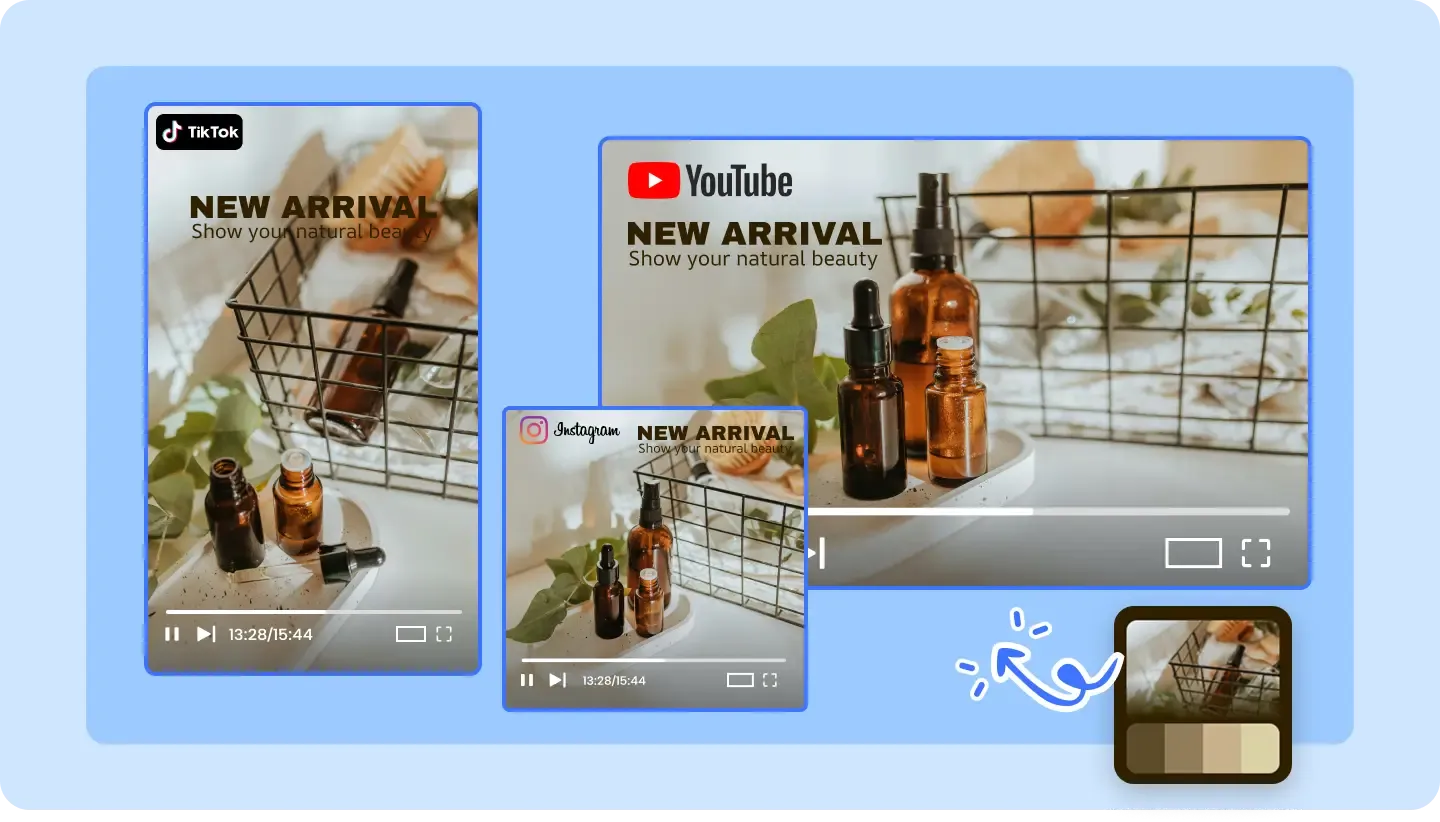
The top 108 pixels are covered by the status bar and Instagram header — keep headlines below this line.
The bottom 320 pixels are occupied by the caption area, music bar, and CTA buttons — never place key info here.
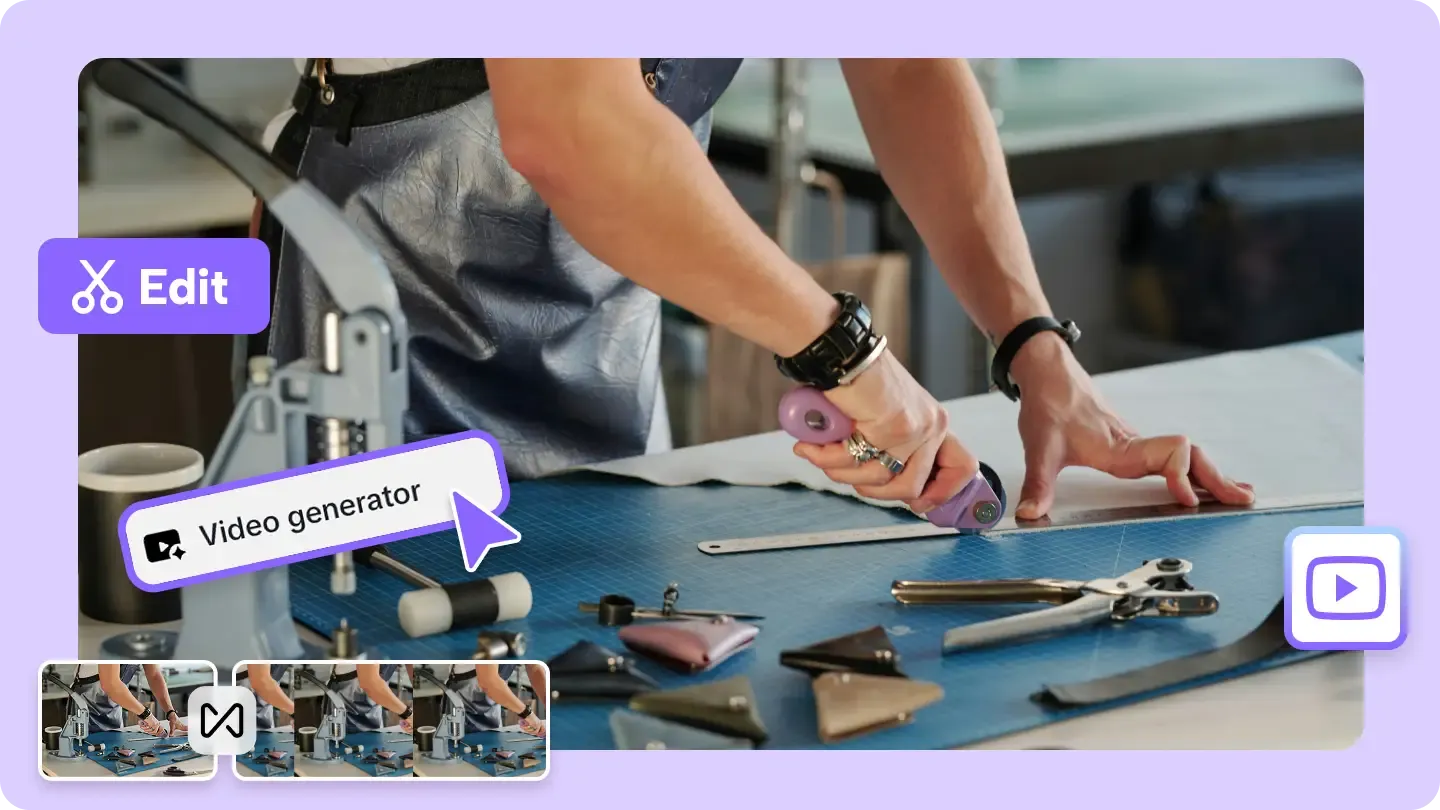

The right side loses 120px to like, comment, share, and remix icons — the left side has a smaller 60px buffer.
Why AdConvert
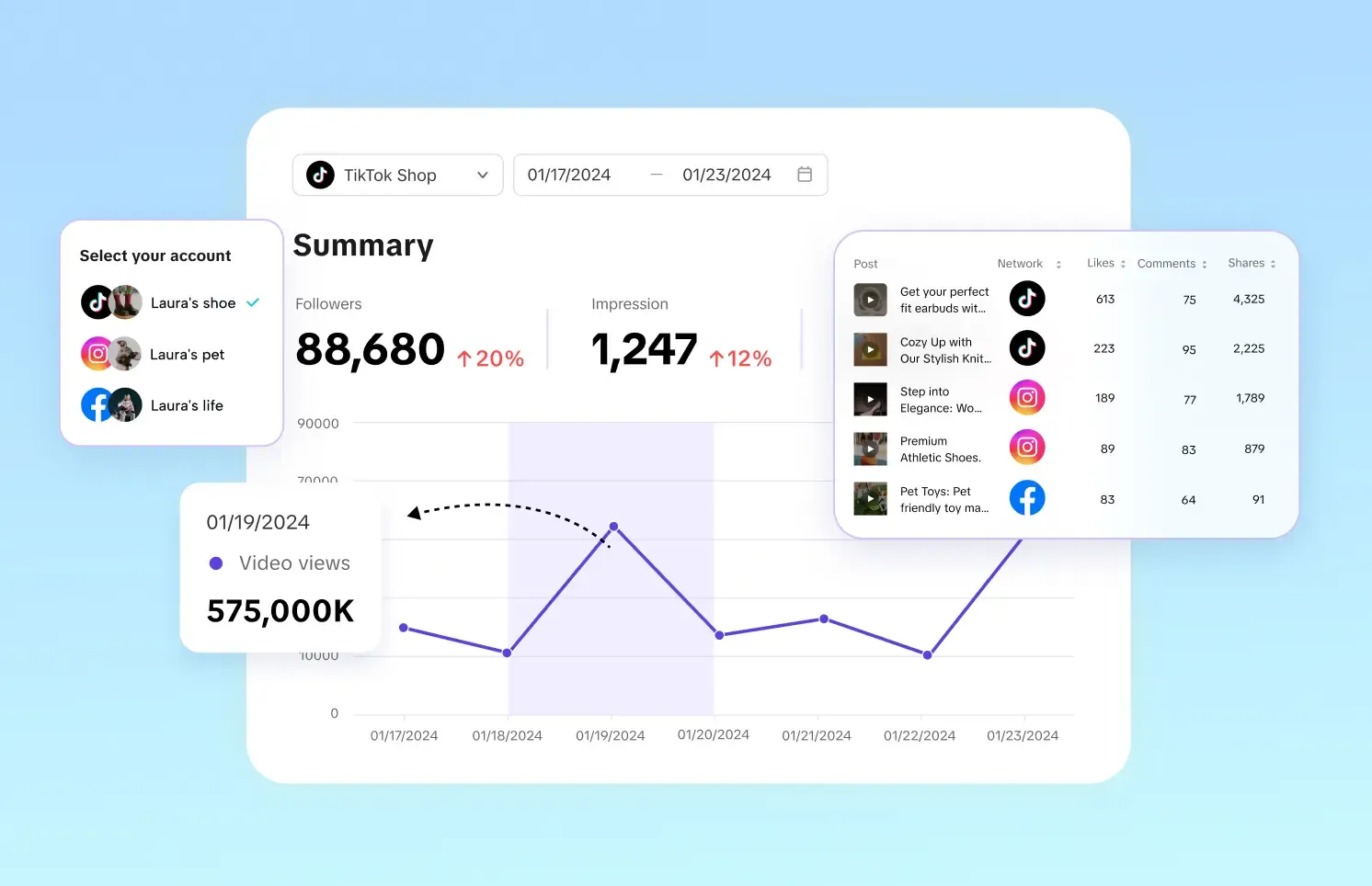
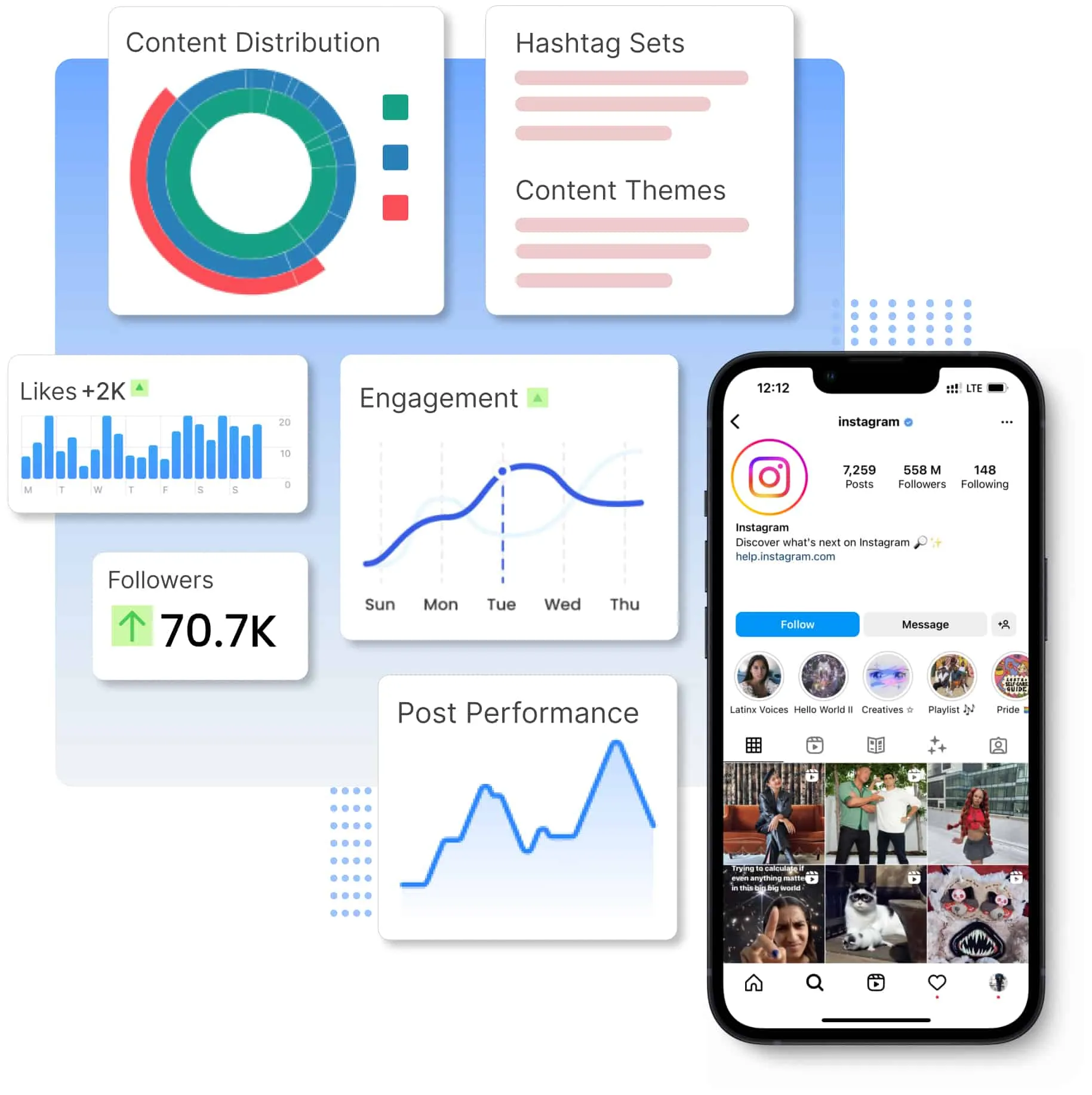
Ensure headlines, subtitles, and CTAs land inside the safe area so viewers read your full message without obstruction.
Reels with properly placed text and clear CTAs earn more saves, shares, and comments — driving the algorithm in your favor.
Avoid the amateur look of text cut off by UI elements — every Reel looks polished and intentional.
Before & After
| Dimension | Without AdConvert | With AdConvert |
|---|---|---|
| Text visibility | Key text hidden behind captions and buttons | All text placed within the 900×1492 safe area |
| Revision rounds | Post, notice clipping, delete, re-edit, repost | Check once before posting, get it right the first time |
| CTA effectiveness | Call-to-action blocked by music bar or share icon | CTA placed in a clear, tappable position |
| Design workflow | Guess safe margins based on screenshots | Pixel-precise overlay with exact dimensions |
How it works

Drag and drop your 1080×1920 image or video file into the checker.
The tool highlights the 900×1492 safe area and marks where Instagram's UI will appear.

Move any text or CTA that falls outside the safe zone, then upload the revised version to confirm.
FAQ
Common questions about this tool.
It is the 900×1492px region within a 1080×1920 Reels canvas where content remains fully visible and unobstructed by Instagram's interface elements like the username, caption bar, music label, and interaction buttons.
The safe zone is 900×1492px. The margins are: top 108px, bottom 320px, left 60px, right 120px. The right margin is larger because of the like, comment, share, and remix icon column.
Upload your image or video to this free checker. The tool renders a semi-transparent overlay showing where Instagram's UI covers your content — if your text is inside the highlighted safe area, it is visible.
Instagram places the caption text, tagged music info, and "Use this audio" CTA at the bottom of Reels. Combined with the navigation bar, this occupies roughly 320 pixels — much more than the top margin.
No. Reels have a larger bottom margin (320px vs 155px) due to the music bar, caption area, and action buttons. The right-side margin is also wider on Reels because of the vertical interaction icon stack. Use the platform-specific checker for each format.
Both. Upload MP4, MOV, JPG, or PNG. For videos, the checker extracts a representative frame and applies the safe zone overlay so you can verify text placement across your edit.
Cross-Platform

Ready to post with confidence
Free to start · AI-powered ad creative system · Trusted by performance teams